Price Overlay user manual One page
From F2 prices to map, side-by-side, minimap, party, quests and all 42 settings — the full guide for first-time users · as of app 1.3.0
First 5 minutes — these three are all you need
The overlay only captures the screen and reads the text; it never reads game memory or sends keys. Drag an empty part of the card to move it — the position is remembered. To hide the card, press Shift+F2.
Reading the price card
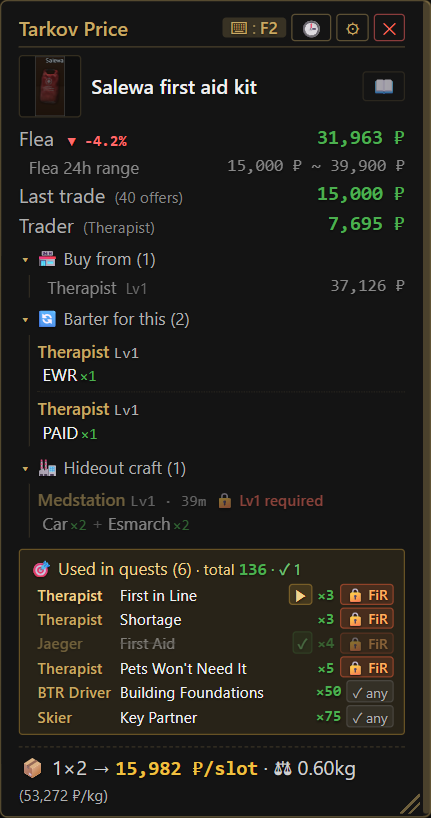
| Item | Meaning |
|---|---|
| Name row | The item name that was read · 📖 wiki · a gold book button when a quest needs it (opens the guide walkthrough) |
| Flea | Current flea price · 24h range · last trade · Net (after the flea fee) · price per slot (₽/slot) |
| Traders | The trader paying the most and the price · where to buy (which trader, at what loyalty level) |
| Loot tier | S/A/B/C/D from ₽/slot plus Kappa and quest weighting |
| 🔄 Barters · 🏭 Crafts | Barters/crafts that give this item, and barters/crafts that use it as an ingredient (with the amount needed) |
| Hideout | Which station, which level and how many — set Settings › Hideout Levels and finished levels are dimmed |
| Quests | Quests that need it, the amount and whether found-in-raid (FiR) is required · in-progress/completed is tracked automatically from the game log · click a row to mark it done |
| Keep notice | If a quest or Kappa needs it, a 'Keep' line is shown — meaning do not sell |
| Ammo matrix | Look up a round or a weapon to compare same-caliber ammo by penetration, damage and armor class (expandable) |
Each block can be turned on or off in Settings › Display, and you can reorder the blocks too. 🕒 (Recent) lets you re-run any of the last 15 lookups.
When to press F2


- Wait for the tooltip, then press. If you press the moment you hover, the name is not there yet and it reads as "empty area".
- It also reads trader trade screens, flea listings and ground item labels.
- "Item names keep failing to read" showing up? Press Adjust capture region — on 4K, 125% scaling or ultrawide monitors the capture box may sit off the tooltip (Settings › Capture region).
- If the wrong item comes up, click the name on the card to correct it; from then on it is read that way.
- If you play PVE, set Settings › Game mode to PVE — prices differ.
Map
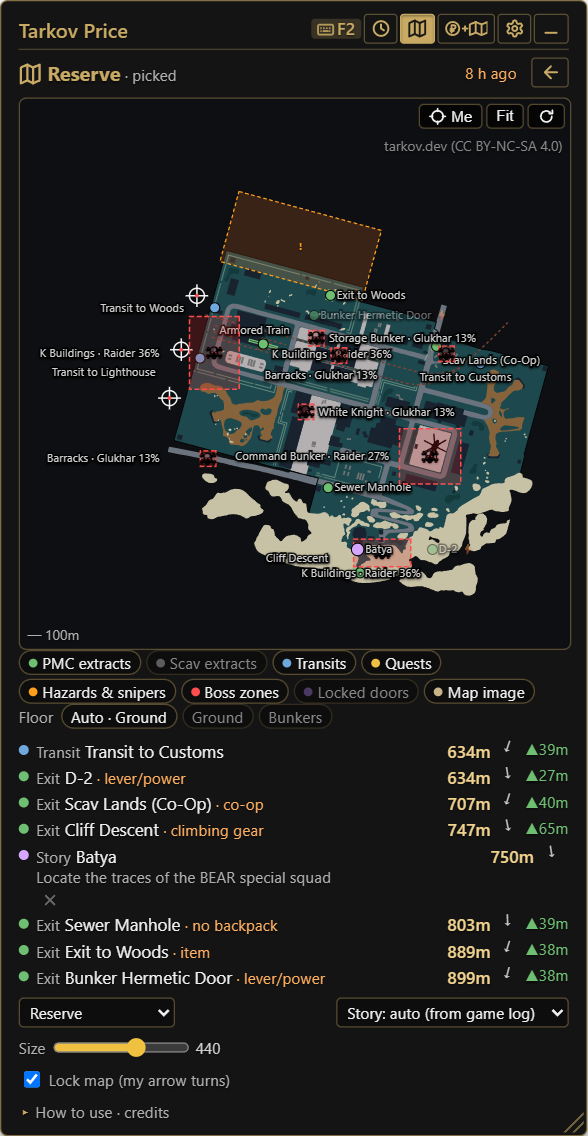
In raid, press the game screenshot key (PrtScn by default) and the overlay takes your position from the coordinates in the file name of the screenshot the game saves, and works out which map you are on from the game log. Settings › Map › "Show map when you take a screenshot" must be on (it is by default).
| Item | Meaning |
|---|---|
| Arrow | Your position and facing direction · double-click = go to my position · wheel = zoom (zoom level remembered) · drag = pan |
| 🔒 Lock view | When on, new screenshots do not move the map away from where you were looking · All = view the whole map |
| PMC extracts · Scav extracts | Toggle with the chips · whether the raid is PMC or Scav is read from the log and set automatically once at raid start (manual changes are kept) |
| My exits only · n | Take a screenshot with the extract list (O) open and only the extracts available in this raid remain (once per raid) |
| Transits · Quests · Hazards & snipers · Boss zones · Locked doors · Map image | Toggle with the chips · quest dots are objective locations of in-progress quests; click one for distance and description |
| Floor | On maps with floor data, auto (your height) or pick with the chips · quests on other floors are dimmed with the floor name; click to switch to that floor |
| Size · Map opacity · Lock map · Bigger me | At the bottom of the panel · with Lock map off, the map rotates so your facing direction is up |
| Detected from log / picked | If the map is not detected, pick it from the list · Story: the chapter is inferred from the log and story objectives are shown too |
Coordinates, extracts and quest positions are from tarkov.dev; map images from tarkov.dev (CC BY-NC-SA 4.0). Screenshot files can be cleaned up automatically in Settings › Map.
Where to put the map — three ways
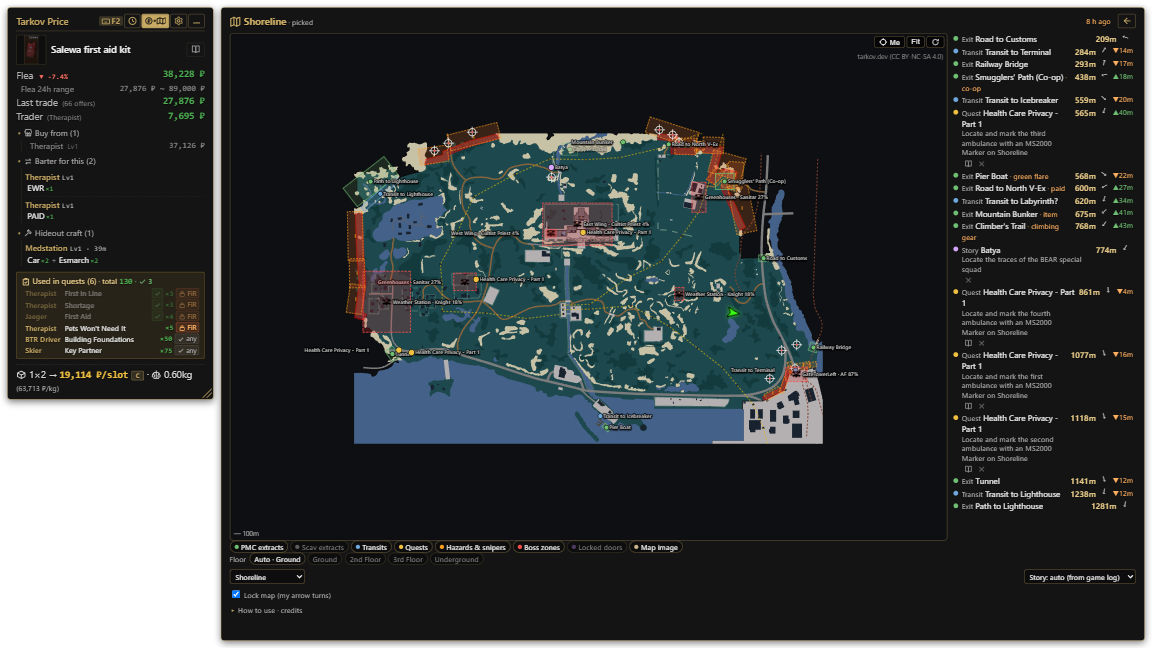
| Mode | When and how |
|---|---|
| Normal | One card showing either prices or the map · a screenshot switches to the map, F2 switches to prices · for a single monitor |
| Side-by-side | Settings › Map › Side-by-side map (or the icon at the top) · the window fills that monitor with prices on the left and the map on the right · meant for a second monitor · portrait monitors work too · resize with the handle at the bottom right |
| Minimap mode | The Minimap mode button in the map panel · just a small map without header or buttons, always floating over the game · drag by ⠿ to place it and Expand to return · press F2 and the price card appears in its original place, then goes back to the small map after the hide delay |
If you want the lookup key to be the same as the game screenshot key, turn on Settings › Hotkeys › Pass the lookup key to the game too — one press does a price lookup + screenshot + map update (outside the inventory, just the map).
Party room — friends’ positions on each other’s maps
- Map panel › Party › Create room → a 6-digit code is created. Set your nickname next to it.
- Friends enter the code under Join (up to 5 people).
- When each of you presses the screenshot key in a raid, that position shows up as a colored dot on everyone’s map. If you are not on the same map, only "Other map" is shown.
- Change your nickname inside the room and press Enter — it updates on your friends’ screens too. With ✎ next to a member’s name you can give them an alias that only you see.
Only the coordinates at the moment of the screenshot are shared. Game memory is never read, and the room disappears once everyone leaves. "Share my position" turned off means your dot is not sent.
Quests · Faction · Guide sync
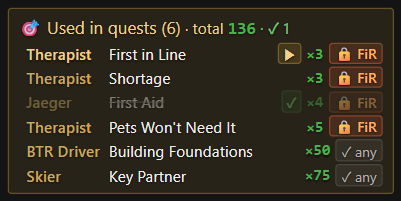
| Item | Meaning |
|---|---|
| Quest auto-tracking | Settings › Quests › Auto-track from game log · if the EFT install path is not found, set it with 'Browse' · after a wipe or Prestige, use Manual sync to reset per mode |
| My faction | Settings › Quests › My faction · Auto (inferred from faction-only quest records) or BEAR/USEC · quests of the other faction are left off the card |
| Guide sync | Settings › Quests › Sync with site · your in-progress quests, hideout levels and faction flow into this site’s quest and raid-prep pages (while the app is running on the same PC) |
| Hideout Levels | Set each station’s level in Settings › Hideout Levels and the card’s hideout row highlights only the remaining levels |
| Open guide | Gold book button in the card’s quest row → walkthrough for that quest · also from quest dots on the map |
All settings — what is inside ⚙
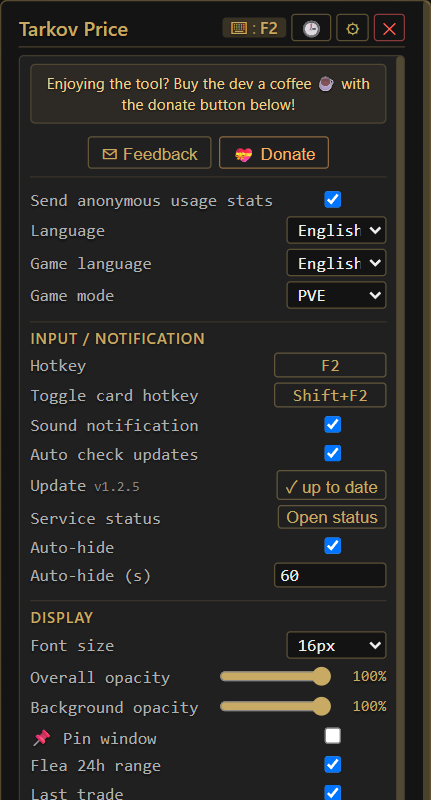
| Section | Item |
|---|---|
| regular | Send anonymous usage stats · Language (Korean/English/Русский/简体中文) · Game language (OCR dictionary: KO/EN/RU) · Game mode (PVP/PVE/Season) · Sound notification · Auto-hide · Auto-hide (s) · Pin window |
| Hotkeys | Lookup hotkey (F2 by default; mouse side buttons and wheel click also work) · Toggle card hotkey (Shift+F2 by default) · Pass the lookup key to the game too |
| Map | Show map when you take a screenshot · Side-by-side map · Screenshot folder (auto/custom) · Auto-clean map screenshots |
| Display | Flea 24h range · Last trade (highlight) · Weight efficiency · Buy from · 2 barter blocks · 2 craft blocks · Hideout · Quests · Dim/hide completed quests · Panels open by default · Block order · Font size |
| Quests | Auto-track from game log · Status (done/wip counts) · EFT install path · Manual sync (All/PVP/PVE/Season) · My faction · Sync with site |
| Hideout Levels | Current level of each station |
| Capture region | Adjust capture region (tooltip box position and size) · Preview anchor |
| Updates · About | Auto check updates · Version · Feedback (Attach diagnostics) · Service status · Donate |
Settings are stored on this PC only: next to the executable for the portable build, in your user folder (%LOCALAPPDATA%\TarkovPriceOverlay) for the installed build.
Troubleshooting
| Symptom | What to check |
|---|---|
| Nothing happens when pressing F2 | Run the overlay app as administrator · if another program uses F2, change the hotkey |
| Constant 'could not read' | Press after the tooltip appears · Adjust capture region · check that the game language matches the game language in settings |
| Map does not appear | Check that the game screenshot key actually saves a file (Documents › Escape from Tarkov › Screenshots) · check Settings › Map › Screenshot folder · if the map is not detected, pick it manually |
| Quests missing from the map or card | Check that auto-tracking in Settings › Quests is on and the EFT install path is right · the game has to run once for logs to exist |
| Card disappears or the game minimizes | Turn off Settings › General › Auto-hide · prefer 'Borderless windowed' mode over fullscreen · if it still happens, send feedback with Attach diagnostics checked |
| Coordinates are off (4K, 125%, dual monitors) | Adjust capture region → auto-fit to resolution |
More questions: FAQ · whether lookups work right now: Service status · send anything else via the app ⚙ › Feedback and it goes into the next version.